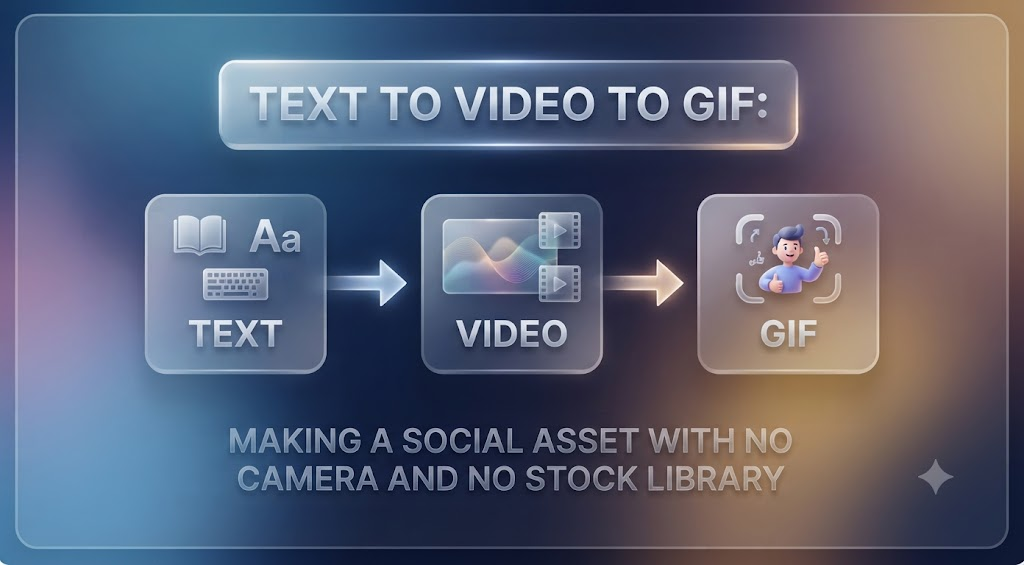
You need a three-second visual. Something small and looping that makes a post, a newsletter, or a product update feel alive instead of flat. You do not have footage of the thing you want to show, you do not have a camera pointed at anything useful, and the stock library returns the same four smiling people in the same bright office that everyone else is already using.
This is the specific gap that text to video to GIF closes. You describe the shot, a model produces a short clip, and you convert that clip into a GIF sized for wherever it is going. No shoot, no license fee, no scrolling through pages of stock results hoping something is close enough.
The pipeline is simple. Doing it well is a matter of a few technical decisions that are easy to get wrong and quick to get right once you know what they are. Here is the whole process, including the settings that actually determine whether your GIF looks sharp or looks like it was saved in 2009.
Why GIF, when video exists
It is a fair question. Video is better in almost every technical respect: more colors, better compression, sound, and smaller files at equivalent quality.
GIF survives because it plays everywhere without asking permission. It autoplays in an email client, loops in a Slack thread, sits inside a documentation page or a product changelog, and works in comment fields and forums where an uploaded video is either unsupported or hidden behind a click. It has no sound, which is a limitation in a movie and a feature in a feed. It also loops indefinitely without controls, which is exactly what you want from an ambient visual that supports the text around it.
That set of surfaces — email, chat, docs, forums, changelogs — is where a GIF is still the right answer, and it is precisely where a marketer or product manager most often needs one and has nothing to make it from.
The three-step pipeline
The workflow is: write a prompt, generate a short clip, convert the clip to GIF. Each step has one decision that matters more than the rest.
It is worth saying what the alternative costs. A stock clip that nearly fits still needs trimming, cropping, and a license check, and it appears in other people’s marketing too. An online AI video generator produces something that has never existed before, matched to your description rather than to a photographer’s catalog.
Prompting decides whether the motion is usable. Generation settings decide clip length and framing. Conversion settings decide file size and color quality. Most disappointing results trace back to a single wrong choice in one of those three places, not to the technology being incapable.
Step 1: Write a prompt that produces a usable loop
A prompt for a GIF is different from a prompt for a video. You are not writing a shot for a sixty-second explainer; you are writing three seconds that will play over and over, forever, next to someone’s text.
Keep to one motion idea. Steam rising from a cup. A cursor moving across a card. Fabric shifting in a breeze. A slow push toward a subject. Multiple simultaneous actions look chaotic when they repeat every three seconds, and they look worse after the fifth loop.
Favor motion that returns near where it started. A pendulum, a breath, a slow sway, and a drift that eases out all loop far more gracefully than motion traveling in one direction. A clip of someone walking left has to jump back to the start each cycle, and the viewer notices the jump every single time.
Avoid readable text, logos, and hands in the frame. These are the elements current models handle least reliably, and GIF’s reduced color palette makes the resulting artifacts more obvious rather than less.
Finally, describe the background as stationary. Explicitly saying the background stays fixed while only one element moves produces a cleaner loop and, as a useful side effect, a much smaller file, because GIF compression rewards frames that mostly repeat.
Step 2: Generate the clip
Use an online AI video generator rather than a desktop application here, for a practical reason: the whole point of this workflow is speed, and a browser-based tool removes installation, model downloads, and hardware requirements from a task that should take ten minutes. ImagineArt’s generator runs in the browser and outputs standard MP4 files, which is what your GIF converter expects.
Three settings matter.
Duration. Generate three to five seconds. Longer clips are wasted here, because you will trim anyway, and GIF file size grows almost linearly with frame count. A six-second GIF is not twice as engaging as a three-second one; it is just twice as heavy.
Aspect ratio. Decide now, not after conversion. A square GIF suits Slack and email. A 16:9 GIF suits documentation and changelogs. Cropping later throws away the composition you approved.
Resolution. Generate at the highest resolution available even though the GIF will be far smaller. Downscaling a clean source produces a sharper GIF than upscaling a small one, and the extra detail gives the color quantizer more to work with.
Model choice is worth a minute of experimentation as well. Video generation models differ in what they handle cleanly: some are stronger on human motion, others on fluid, particles, and landscape movement. Testing one prompt against two models takes less time than rewriting it a third time.
One habit worth adopting: generate a still image first, approve the composition, and only then animate it. Video generation is slower and more expensive than image generation, so settling the framing at the image stage costs less and gives you a first frame you have already accepted. Because ImagineArt keeps image and video generation in the same workspace, that handoff does not involve exporting or re-uploading anything.
Step 3: Convert to GIF without wrecking it
This is where most GIFs go wrong, and it is entirely a settings problem.
Frame rate. Video runs at 24 or 30 frames per second. A GIF does not need that. Twelve to fifteen frames per second reads as smooth for the kind of gentle motion described above, and roughly halves file size compared to 30 fps. Below ten, motion starts to look stuttery.
Dimensions. Between 480 and 600 pixels wide covers almost every use. Email clients display GIFs small, Slack scales them down, and documentation rarely needs more. Exporting at 1080p produces a multi-megabyte file that most of those surfaces will reject or throttle.
Color palette. GIF supports a maximum of 256 colors per frame, which is the format’s defining constraint. Reducing to 128 colors often cuts file size substantially with no visible difference on footage that has a limited palette to begin with. Smooth gradients and dark scenes are the exception; they band badly under aggressive reduction, so either keep more colors or choose source footage with clear, separated tones.
File size targets. Under 1 MB for email, since several clients refuse to load larger files and mobile data users will not wait. Two to five megabytes is acceptable for social and documentation. If you cannot hit the target, cut the duration before you cut the dimensions — length is almost always the cheaper thing to lose.
Trim to the loop point. Watch the clip and find the frame where the motion is closest to the opening frame, then end it there. This adjustment does more for perceived quality than any other conversion setting.
Make the first frame carry the message
Here is the detail most people learn the expensive way: Outlook on Windows does not animate GIFs. It displays the first frame and nothing else, permanently.
That is a large share of corporate email recipients seeing a still image where you designed a loop, and it is the most common reason a GIF underperforms without anyone diagnosing why. The fix is straightforward. Make the first frame a complete, meaningful image on its own — the product visible, the message legible, the composition finished. Never open on a fade from black or an empty frame that only makes sense once the motion begins.
The same principle protects you elsewhere. Some feeds pause animation until a user interacts, and some readers disable animation entirely for accessibility reasons. A GIF whose first frame stands alone works in all of those conditions.
Accessibility is not optional here
Animated content carries real accessibility obligations, and they are simple enough to meet that there is no excuse for ignoring them.
Nothing should flash more than three times per second. This is the threshold in WCAG 2.3.1, and it exists because flashing above it can trigger seizures in people with photosensitive epilepsy. Fast strobing effects and hard cuts between high-contrast frames are the usual offenders, and both are easy to avoid at the prompting stage.
Write alt text describing what the GIF shows, not the fact that it is a GIF. Keep motion gentle, since large, fast movement causes discomfort for people with vestibular sensitivity. And do not put essential information exclusively in later frames, which is the same rule the Outlook problem already forced on you.
What this workflow does not replace
Being honest about the limits is what makes the rest of the advice trustworthy.
It does not replace a screen recording of your actual product. If you are showing a real interface, record the real interface. A generated approximation of your own UI is worse than useless, because a viewer who signs up expecting what they saw will find something different.
It does not replace footage of real people if authenticity is the point. Generated people in a testimonial context are a credibility risk, and in many jurisdictions there are disclosure expectations attached to synthetic media in advertising. Check what applies to you before publishing, particularly for anything paid.
It does not suit fine detail. Text, logos, product packaging, and jewelry all degrade under GIF color reduction even when the source clip is clean.
Where it genuinely excels is ambient and conceptual visuals: abstract motion, atmosphere, illustrative scenes, and the small looping pieces that make a newsletter or a changelog feel considered rather than empty.
A working checklist
- One motion idea only, ideally returning to its starting position.
- Source clip generated at three to five seconds, highest available resolution.
- Background explicitly held stationary in the prompt.
- Converted at 12 to 15 frames per second, 480 to 600 pixels wide.
- Palette reduced to 128 colors unless the footage has smooth gradients.
- Trimmed at the frame closest to the opening frame.
- First frame complete and meaningful on its own.
- Under 1 MB for email, under 5 MB elsewhere.
- No flashing faster than three times per second.
- Alt text written, describing the content rather than the format.
Ten minutes, start to finish
Once you have done this twice, the whole sequence takes about ten minutes: two minutes writing a prompt, three or four minutes on video generation and a regeneration if the first attempt is off, two minutes converting, and a couple of minutes checking the result at actual size on the surface where it will appear.
That is the real change. Not that an online AI video generator can produce a clip, which is by now unremarkable, but that the distance between needing a small visual and having one has collapsed from a procurement problem into a task you finish before your coffee gets cold.
The discipline that makes it work is the same discipline that makes any short-form asset work. Decide what the viewer should see. Keep the motion simple. Respect the constraints of the format you are exporting to rather than fighting them. Do that and a GIF made from a generated clip is indistinguishable from one made from footage, except that it shows exactly what you wanted, cost nothing to license, and did not require anyone to leave their desk.